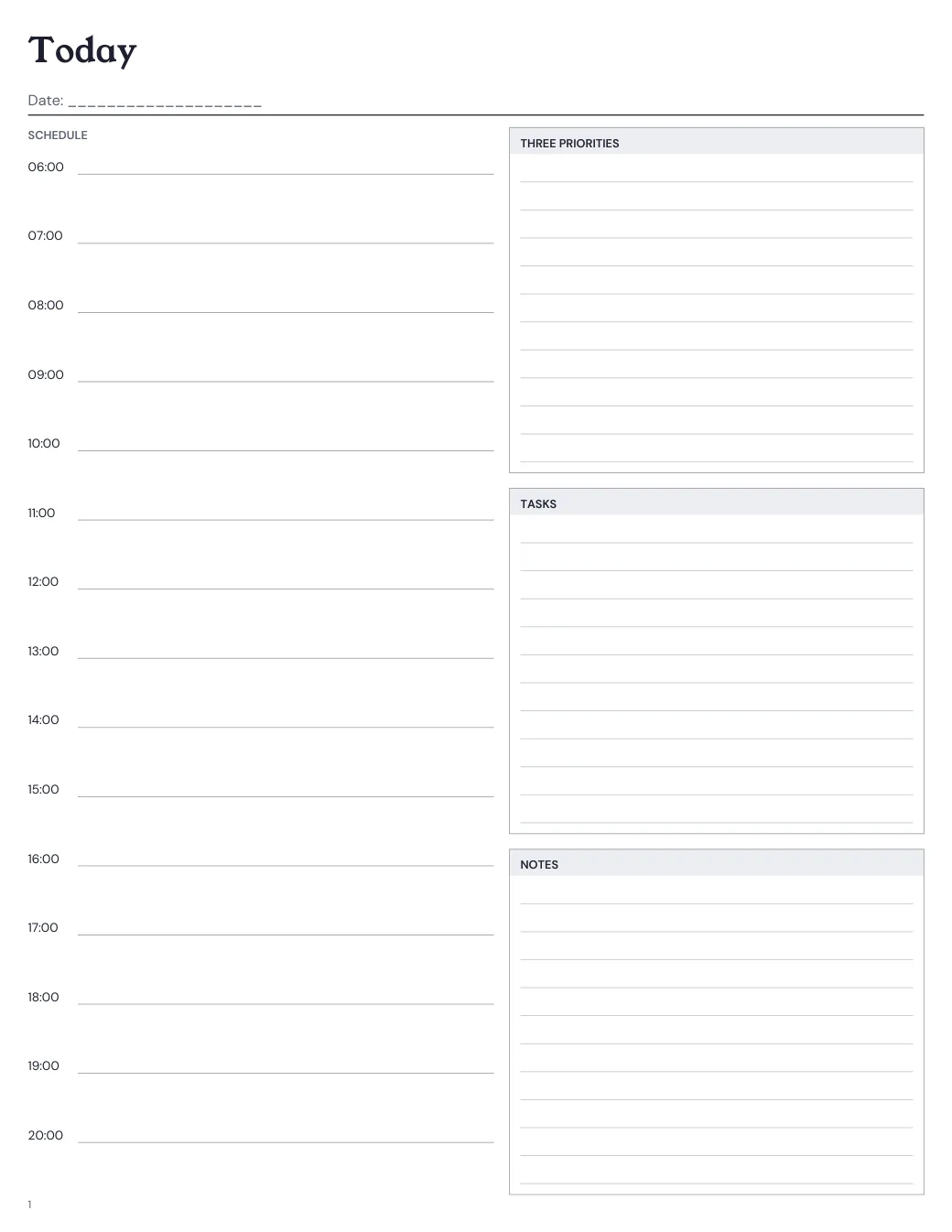
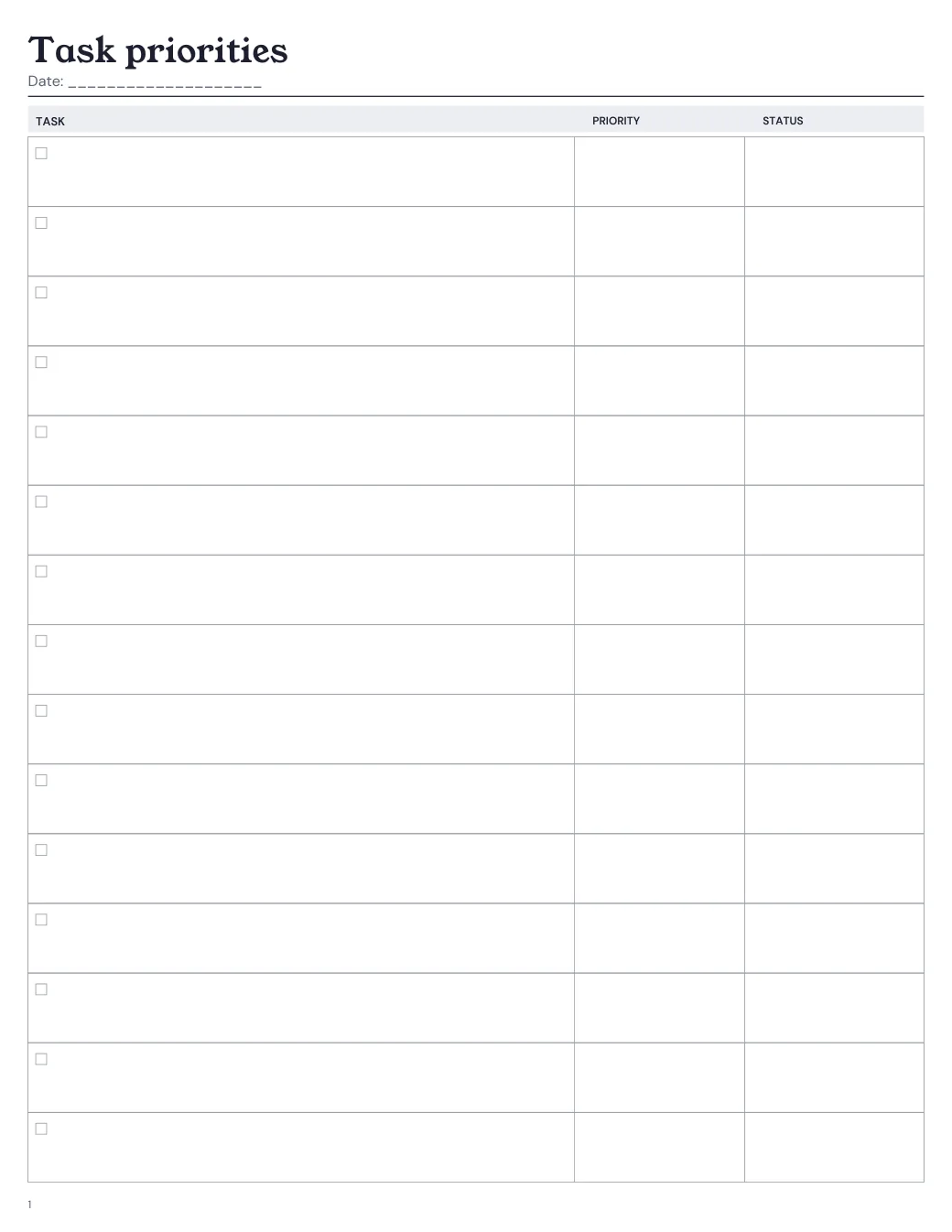
Choose the layout for the job
Set the first and last schedule hour to match the day you need, give the page a short title, and show or hide priorities, tasks and notes. The separate task-priority layout adds one undated sorting page when selected, regardless of the date range.
- Choose a start before the end and keep enough vertical room for the resulting time rows.
- Preview the chosen sections at the finished size; compact pages may require fewer sections or a shorter schedule.
- Place the daily and task-priority layout groups in the order you want; all dated daily pages stay together.
Keep the refill consistent
Open these choices in the builder, select the finished-size preset and arrange this page with the rest of your layouts. The content margin moves the writing area away from the binding edge. It is space, not a hole position, and it cannot promise that a particular punch fits. Trim first, then line the page up with your punch’s own guide.
Preview, test, then print
Choose the daily schedule for appointments and the task-priority page for a separate task list. Appointment and task spaces stay blank for handwriting; the builder edits the title, hours and visible sections.
Print one test page before the whole set. In the print dialog, choose the paper the PDF is made for, turn off Fit to page and any other scaling, and measure the test mark. The PDF is the right size; the printer settings decide whether it stays that way.